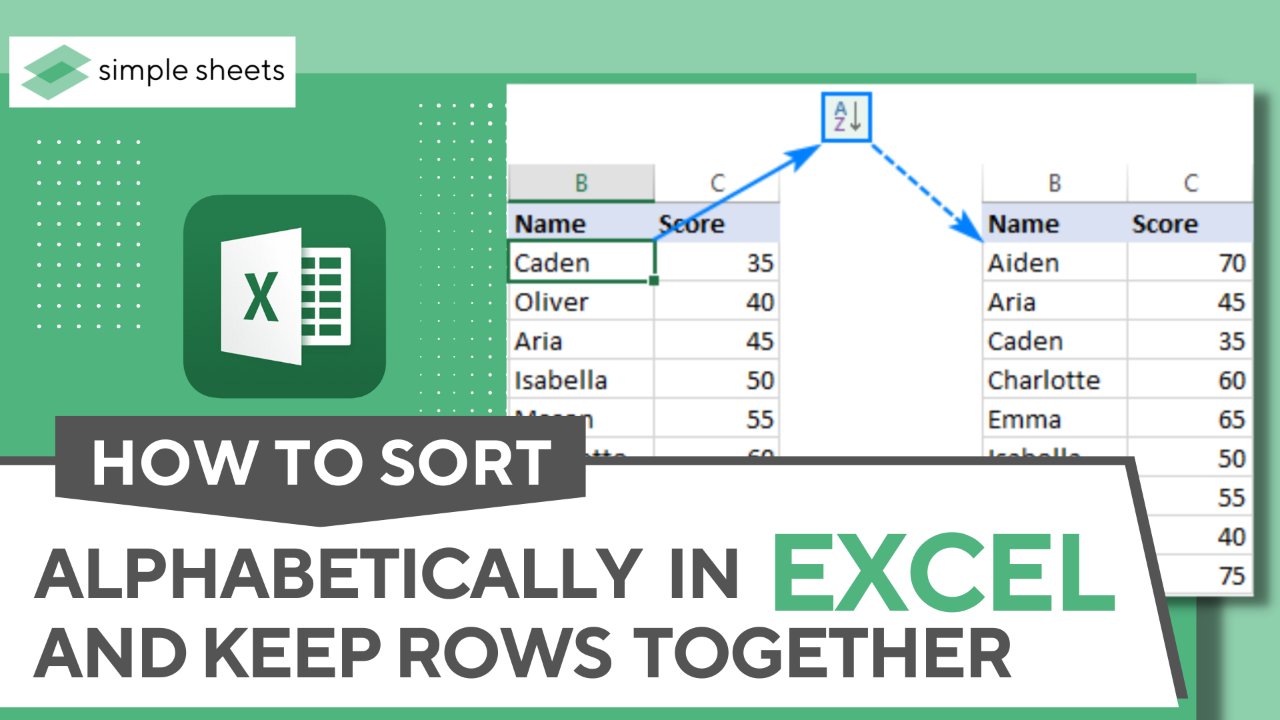
Sorting alphabetically in Google Sheets while keeping rows together is a common challenge many users face. The solution lies in utilizing a simple feature that allows you to maintain the integrity of your data structure. By understanding how to sort alphabetically in Google Sheets and keep rows together, you can easily organize your information without disrupting the relationships within your dataset. Let’s explore this efficient method to streamline your data management process and enhance your productivity.

How to Sort Alphabetically in Google Sheets and Keep Rows Together
Welcome, young scholars! Today, we are going to embark on an exciting journey into the world of Google Sheets. Have you ever wondered how to organize your data in alphabetical order while keeping all the rows together? Well, you’re in luck because we are going to dive deep into this topic and learn all about how to sort alphabetically in Google Sheets and maintain the integrity of your data. So, grab your thinking caps and let’s get started!
Understanding the Basics of Google Sheets
Before we jump into sorting our data, let’s take a moment to understand what Google Sheets is all about. Google Sheets is a powerful tool that allows you to create, edit, and collaborate on spreadsheets online. It’s like having your own virtual notebook where you can store and organize information in a structured manner.
Within Google Sheets, you can input data into different cells, create formulas for calculations, and even visualize your data using charts and graphs. One essential feature of Google Sheets is the ability to sort your data alphabetically, which can be incredibly helpful when you need to organize a list of names, items, or any other type of information.
Sorting Alphabetically in Google Sheets
Sorting data alphabetically in Google Sheets is a straightforward process that can be done in just a few simple steps. Let’s walk through the process together:
Step 1: Select the Data Range
The first step is to select the range of data that you want to sort alphabetically. You can do this by clicking and dragging your mouse over the cells that contain the data you wish to organize.
Step 2: Open the “Data” Menu
Once you have selected the data range, navigate to the top menu and click on the “Data” option. A dropdown menu will appear with various data-related functions.
Step 3: Choose “Sort Range”
From the “Data” menu, select the “Sort range” option. This will open a window where you can customize how you want your data to be sorted.
Step 4: Select the Sort Criteria
In the “Sort range” window, you can choose the column you want to sort by and whether you want to sort in ascending or descending order. For alphabetical sorting, you would typically select the column that contains the text you want to arrange.
Step 5: Apply the Sorting
Once you have set your sorting criteria, click on the “Sort” button. Google Sheets will rearrange your data based on the selected column, placing the entries in alphabetical order.
Keeping Rows Together During Sorting
Now that you know how to sort your data alphabetically in Google Sheets, let’s tackle the challenge of keeping rows together while sorting. This can be particularly important when you have related information in different columns that need to stay connected even after sorting.
Using Multiple Columns for Sorting
One effective way to keep rows together during sorting is to utilize multiple columns for sorting. By selecting more than one column as the sorting criteria, you can ensure that the data in those columns stays linked together even after the sorting process.
For example, if you have a list of students with their names in one column and their corresponding grades in another column, you can select both the name and grade columns for sorting. This way, when you sort the data alphabetically by names, the grades will move along with the respective student names, keeping the rows intact.
Using the “Sort Range” Feature Wisely
When using the “Sort range” feature in Google Sheets, pay attention to the options available to you. You can choose to sort by multiple columns and specify whether you want to expand the selection or sort only the range. By carefully selecting these options, you can control how your data is sorted and ensure that the rows remain connected.
Applying Filters for Grouping
Another trick to keep rows together when sorting in Google Sheets is to apply filters to your data. Filters allow you to group related rows together based on specific criteria, making it easier to maintain the integrity of your information even after sorting.
By setting up filters for different columns, you can quickly identify and isolate related rows before sorting. This way, when you rearrange the data alphabetically, the grouped rows will stay together, preserving the relationships within your dataset.
Congratulations, young scholars! You have successfully learned how to sort data alphabetically in Google Sheets and keep rows together. By mastering these techniques, you can now organize your information effectively and maintain the structure of your data even after sorting.
Remember, Google Sheets is a powerful tool that offers a wide range of features to help you work with data efficiently. By exploring and practicing different functions within Google Sheets, you can become a spreadsheet wizard in no time!
So, keep practicing, keep exploring, and keep sorting alphabetically while keeping your rows together like a pro. The world of data awaits you, and with Google Sheets by your side, there’s no limit to what you can achieve. Happy organizing!
Learn How to Sort Alphabetically and Keep Rows Together in Excel in 2️⃣ minutes!
Frequently Asked Questions
How can I sort alphabetically in Google Sheets while keeping rows together?
To sort alphabetically in Google Sheets and keep rows together, you can select the range of data you want to sort, then go to “Data” in the menu bar and choose “Sort range.” In the “Sort range” window, you can select the column you want to sort by and choose whether to sort from A to Z or Z to A. To ensure rows stay together, make sure to check the box that says “Data has header row” if your data includes headers.
Is it possible to sort multiple columns alphabetically while maintaining row integrity in Google Sheets?
Yes, you can sort multiple columns alphabetically and keep rows together in Google Sheets. Simply select the range of data you want to sort, then go to “Data” in the menu bar and choose “Sort range.” In the “Sort range” window, you can specify multiple columns to sort by in the order you prefer. By doing this, rows will be kept together based on the sorting criteria you’ve set.
Can I sort data alphabetically in Google Sheets without disrupting the original order of my rows?
Absolutely. To sort data alphabetically in Google Sheets without changing the original order of your rows, you can add an extra column and assign it sequential numbers before sorting. Once you have sorted the desired column alphabetically, you can then sort back to the original order using the numbering column to keep the rows together.
Final Thoughts
To sort alphabetically in Google Sheets and keep rows together, use the “Sort Range” feature. Select the columns you want to sort, then go to Data > Sort range. Choose the column to sort by and select “Data has header row” if applicable. Click “Sort” to rearrange the data while keeping rows intact. Ensure consistency in your data format to maintain accurate sorting. In conclusion, mastering how to sort alphabetically in Google Sheets and keep rows together is essential for organizing and analyzing data efficiently.